
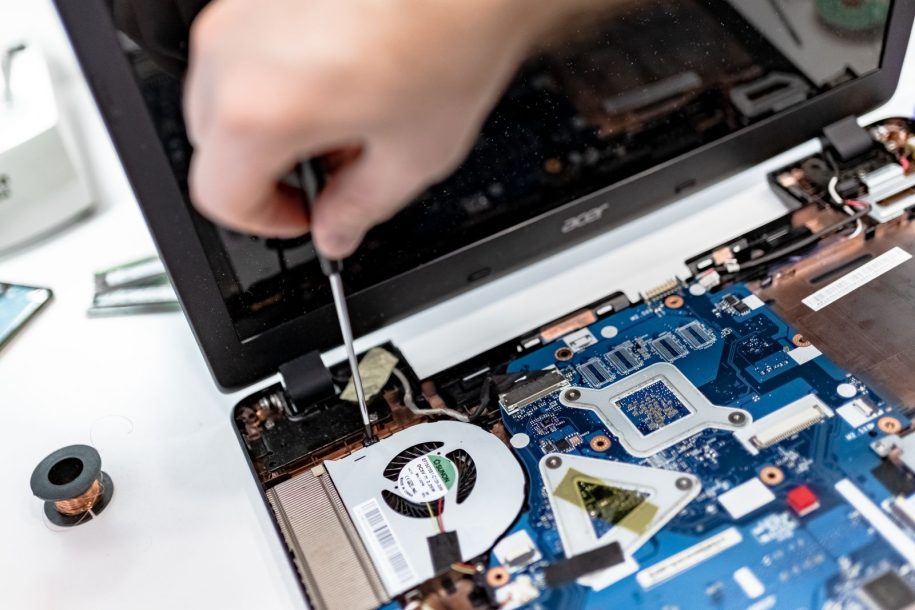
A warm laptop is not automatically a problem, but a laptop that becomes painfully hot, runs its fan at full speed, slows down, or shuts off without warning needs attention. Modern processors generate heat, and the cooling system must continually move that heat away from sensitive components. When airflow or heat transfer breaks down, the laptop may reduce its speed or shut itself off to prevent damage.
This guide covers safe steps you can take at home, the common causes of laptop overheating, and the warning signs that call for professional repair. If your laptop keeps shutting down, i-5 Computers provides computer diagnostics in Vancouver, WA for customers throughout Clark County.
How to Tell Whether Your Laptop Is Overheating
Some warmth near the exhaust vent is normal during gaming, video editing, updates, or other demanding work. Overheating is more likely when several symptoms happen together:
- The fan stays unusually loud even during light use
- The keyboard, bottom panel, or palm rest becomes excessively hot
- Programs stutter and performance drops after the laptop warms up
- The screen freezes, goes black, or displays graphics artifacts
- The laptop restarts or shuts off without a normal Windows message
- The fan scrapes, rattles, pulses, or does not seem to run
- The same problem returns shortly after the laptop cools down
A thermal shutdown is a warning, not a repair. Repeatedly turning the laptop back on may expose the battery, storage drive, motherboard, and processor to continued heat.
Why Laptops Overheat and Shut Down
Blocked Airflow
Soft surfaces such as beds, blankets, couches, and laps can cover intake vents. Dust and pet hair can also collect around exterior vents, fans, and heatsinks. Because laptop cooling channels are compact, even a modest obstruction can have a noticeable effect.
Cooling Fan or Heatsink Problems
A worn fan may spin slowly, stop intermittently, or make grinding sounds. Dust can become packed inside the heatsink where it is not visible from outside. Thermal compound between the processor and cooling assembly can also deteriorate over time, reducing heat transfer.
Heavy Background Activity
Updates, cloud synchronization, security scans, browser tabs, unwanted software, and startup applications can keep the processor busy. Gaming laptops may also run hot when performance modes, frame rates, and graphics settings demand more power than necessary.
Battery or Power Problems
A failing battery or charging circuit can generate abnormal heat. Battery swelling may lift the trackpad, separate the bottom cover, distort the keyboard, or prevent the case from closing correctly. A swollen battery is a safety issue and should not be pressed back into place, punctured, charged, or removed without appropriate training.
Environmental Conditions
Direct sunlight, a hot vehicle, high room temperature, and poor ventilation make cooling more difficult. A laptop that normally works well may overheat when used outdoors or inside an enclosed cabinet.
Safe Steps to Cool an Overheating Laptop
1. Shut It Down and Let It Cool
If the case is extremely hot or the laptop has shut itself off, disconnect the charger, move it to a hard nonflammable surface, and allow it to cool naturally. Do not put it in a refrigerator or freezer; rapid temperature changes can create condensation inside the computer.
If you smell burning, see smoke, hear electrical popping, or notice battery swelling, stop using the laptop. Move away from combustible materials if this can be done safely and arrange professional service.
2. Use a Hard, Flat Surface
Set the laptop on a desk or table with all intake and exhaust vents unobstructed. Check the bottom and sides for vents, because their location varies by model. A stand can improve clearance, but it cannot repair a failed fan or clogged internal heatsink.
Avoid inexpensive cooling pads as a substitute for diagnosis. They may slightly improve external airflow, but they do not correct dried thermal compound, a damaged fan, or internal dust buildup.
3. Inspect and Clean Only the Exterior Vents
Turn the laptop off and unplug it. Use a soft brush or short, controlled bursts of electronics-safe compressed air to remove loose surface dust. Keep the can upright and do not force the nozzle into the case. Aggressively spinning a fan with compressed air can damage it, and blowing from the wrong direction can push debris deeper inside.
Do not remove the bottom cover unless you understand the model’s service procedure and warranty implications. Modern laptops may use delicate ribbon cables, hidden screws, adhesive, and batteries that should be disconnected before internal work.
4. Check Task Manager for Unusual Activity
After the laptop has cooled, start Windows and press Ctrl + Shift + Esc to open Task Manager. On the Processes tab, look for an application that continuously uses a large amount of CPU, memory, or graphics resources while the computer is otherwise idle.
Close applications you recognize and do not need. Remove unnecessary startup programs through Task Manager or Windows Settings. Do not end unfamiliar Windows processes or install third-party “optimizer” utilities. If suspicious programs, redirects, or advertisements accompany the heat, run a full Windows Security scan or consider professional malware removal.
5. Install Trusted Updates
After backing up important files, install pending Windows updates and updates supplied through the laptop manufacturer’s official support utility. Graphics and chipset updates may correct power-management problems, but drivers should come from Windows Update, the computer manufacturer, or the component manufacturer.
Avoid random driver download sites and do not update the BIOS solely because the laptop is hot. An interrupted or incorrect firmware update can leave the computer unable to start.
6. Adjust Power and Gaming Settings
In Windows, select a balanced power mode instead of maximum performance for everyday work. Reduce the number of programs running at startup and close unused browser tabs. For gaming laptops, limiting frame rates or slightly reducing demanding graphics settings can lower heat without making the game unpleasant to use.
If the laptop previously handled the same workload without overheating, changing settings may only mask a developing cooling problem. A sudden temperature increase often deserves inspection.
7. Back Up Your Files
Unexpected shutdowns can corrupt open documents and, over time, contribute to storage problems. Copy important files to an external drive or trusted cloud service while the laptop is stable enough to use. Confirm that the backup can be opened from another device.
If the laptop shuts down before files can be copied, do not keep forcing it to run. Professional diagnosis may be the safer way to protect the computer and your data. If files are already inaccessible, learn about data recovery services in Vancouver.
When Does an Overheating Laptop Need Repair?
Home troubleshooting is reasonable when the vents were temporarily blocked or one known program was creating an unusually high workload. A repair inspection is recommended when:
- The laptop shuts down more than once because of heat
- The fan grinds, rattles, does not spin, or runs at full speed constantly
- The computer overheats soon after startup
- Performance remains slow after background activity stops
- The case is separating or the battery appears swollen
- There is a burning smell, discoloration, or melted plastic
- The laptop overheated after liquid exposure or physical damage
- Cleaning the exterior vents makes no meaningful difference
Internal service may require cleaning the heatsink, replacing a fan, renewing thermal materials, testing the battery and charger, or checking the motherboard for heat-related damage. These jobs require model-specific disassembly and the correct replacement parts. i-5 Computers offers laptop hardware repair and practical recommendations based on the condition and value of the computer.
Special Considerations for Gaming Laptops
Gaming laptops naturally operate at higher temperatures because the processor and graphics chip share a compact cooling system. However, repeated thermal shutdowns, severe stuttering, fan errors, or unusually high idle temperatures are not normal. Dust buildup, degraded thermal materials, firmware settings, and worn fans can all reduce cooling capacity.
Professional testing can compare temperatures at idle and under a controlled workload, verify that both fans respond correctly, and determine whether the system needs cleaning, repair, or a more practical performance configuration. If you are considering better gaming performance, i-5 Computers can also discuss appropriate computer performance upgrades without recommending parts that will create more heat than the system can handle.
How Professional Laptop Diagnosis Helps
Heat is a symptom, and the hottest-feeling area is not always the failed component. A technician can inspect internal airflow, test fan operation, monitor processor and graphics temperatures, evaluate the battery and charging system, and check for software that keeps the system under unnecessary load.
For laptop owners in Vancouver and the surrounding Clark County area, a proper diagnosis can help avoid unnecessary parts and clarify whether repair or replacement makes more financial sense.
Does Your Laptop Keep Overheating or Shutting Down?
Do not wait for repeated thermal shutdowns to damage your files or leave the laptop unusable. Contact i-5 Computers in Vancouver, WA and complete the contact form with your laptop model, symptoms, and when the heat occurs. An experienced local technician can help identify the underlying problem and recommend the safest, most practical repair.
Local Computer Help · Vancouver, WA
Still Having Trouble? Tell Us What Is Happening
Describe the computer, the symptoms you are seeing, and when the problem began. Darren will review the details and help you determine the safest next step.
Laptop Overheating Can Damage Components
A hot case or loud fan does not identify the cause by itself. Restricted airflow, dust, worn fans, dried thermal material, heavy background tasks, battery faults, and charging problems need different remedies.
i-5 Computers provides clear diagnostics and practical recommendations from its Vancouver shop, serving customers across Clark County.
Explore professional laptop repairContact i-5 Computers
For additional general guidance, see Microsoft Windows support.