
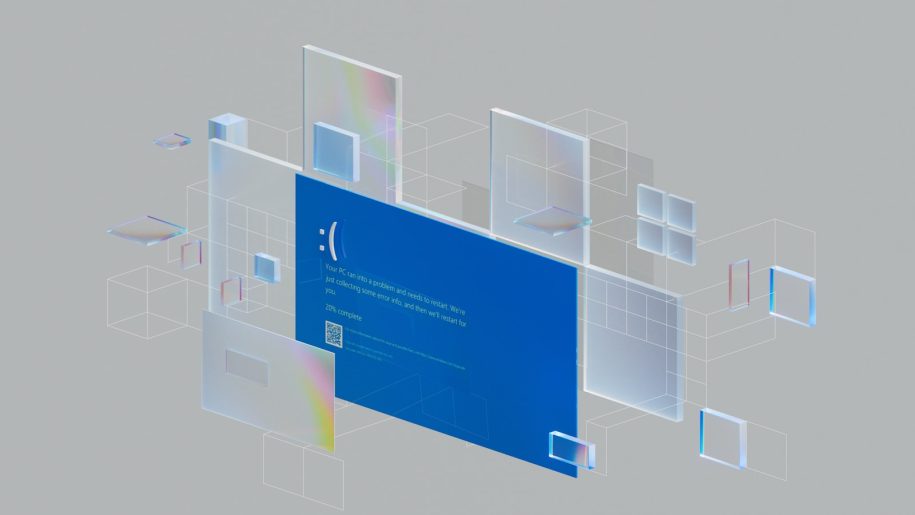
A Windows blue screen or endless boot loop can make a computer appear completely unusable. You may see a stop code, the Windows logo followed by another restart, or the message “Preparing Automatic Repair” every time the system turns on.
These symptoms can come from a failed update, incompatible driver, damaged Windows files, bad memory, a failing storage drive, overheating, or another hardware problem. The safest response is to protect your files first and then troubleshoot in a controlled order.
This guide covers practical recovery steps for desktop and laptop owners in Vancouver, Washington, and Clark County. It avoids risky registry edits and destructive shortcuts. If the files on the computer are irreplaceable, contact a professional before attempting a reset or Windows reinstallation.
What Is the Difference Between a Blue Screen and a Boot Loop?
A blue screen of death, or BSOD, appears when Windows encounters a serious error and stops to protect the system. It may display a stop code such as MEMORY_MANAGEMENT, CRITICAL_PROCESS_DIED, or INACCESSIBLE_BOOT_DEVICE.
A boot loop occurs when the computer repeatedly begins to start but cannot reach a usable Windows desktop. It may restart at the manufacturer logo, during the spinning-dot screen, after a blue screen, or inside Windows Automatic Repair.
The two problems often overlap. A blue-screen error may trigger an automatic restart, creating what looks like a continuous boot loop.
Protect Your Data Before Attempting Major Repairs
If the computer contains family photos, business documents, accounting files, schoolwork, or other important data that is not backed up, avoid repeated resets, factory recovery, drive formatting, or Windows reinstallation. Those actions can overwrite files or remove the easiest recovery options.
If Windows still starts occasionally, copy the most important files to a trusted external drive or secure cloud account before continuing. Do not rely on a failing computer to remain accessible.
If the storage drive clicks, disappears from the system, produces read errors, or makes Windows dramatically slower, stop using it. Repeated startup and repair attempts can place additional stress on a failing drive. i-5 Computers provides professional data recovery in Vancouver, WA when files need to be protected before the computer is repaired.
For a device protected with BitLocker encryption, locate the recovery key associated with your Microsoft account, organization, or original setup records. Do not erase the drive simply because Windows asks for a key you do not currently have.
Record the Error Before It Disappears
Take a clear photo of the blue screen, stop code, QR code, and any file name shown. Note whether the problem began after a Windows update, driver installation, new application, hardware upgrade, power outage, drop, spill, or overheating event.
The wording matters. A stop code does not always identify the failed part by itself, but it gives a technician a useful starting point and can help separate a driver problem from storage, RAM, or hardware instability.
Safe Windows Blue Screen and Boot Loop Recovery Steps
1. Disconnect Nonessential Accessories
Turn the computer off and disconnect external drives, printers, docks, card readers, game controllers, and other nonessential USB devices. Leave only the power connection, monitor, keyboard, and mouse attached, then try starting Windows again.
A malfunctioning accessory or USB device can interfere with startup. If the computer starts normally, reconnect one device at a time to identify the conflict. Do not disconnect an internal drive or open a laptop unless you are comfortable working safely around computer hardware.
2. Allow Windows Recovery Environment to Load
After several failed starts, Windows may enter the Windows Recovery Environment automatically. Look for Troubleshoot and Advanced options. If the screen appears, do not immediately choose “Reset this PC.” Start with the least destructive tools.
If recovery never appears, the system may need a proper Windows recovery drive or professional diagnostic tools. Repeatedly interrupting startup is not a substitute for diagnosing a potentially failing SSD or hard drive.
3. Try Startup Repair Once
From Advanced options, choose Startup Repair. Windows will check for certain startup configuration and system-file problems. Allow the process to finish and record any message it displays.
If Startup Repair reports that it could not repair the PC, repeatedly running it is unlikely to produce a different result. Move to the next safe step instead of starting an endless repair cycle.
4. Start Windows in Safe Mode
From Advanced options, select Startup Settings, restart, and choose Safe Mode. Safe Mode loads a limited set of Windows drivers and services. If the computer is stable there, a recent driver, application, startup program, or update becomes more likely than a complete hardware failure.
In Safe Mode, uninstall only software or a device driver that clearly corresponds with when the problem began. Do not use unverified “registry cleaner,” “one-click repair,” or driver-download programs. They can remove valid settings or install incorrect software.
5. Use System Restore If a Restore Point Exists
System Restore can return Windows system files, drivers, and settings to an earlier restore point without intentionally deleting personal documents. From Advanced options, choose System Restore and select a point created before the blue screens began.
Review the affected programs before confirming. Although System Restore is less destructive than a reset, important files should still be backed up whenever possible.
6. Remove a Recent Windows Update
If the boot loop began immediately after Windows installed an update, Advanced options may offer Uninstall Updates. Start with the latest quality update. Feature-update removal is a larger change and should be considered only when the timing clearly matches the failure.
After the system starts, pause before reinstalling the same update and check for updated hardware drivers or a corrected Windows release.
7. Check Windows System Files
If Windows can remain open in Safe Mode, use the built-in System File Checker. Open Windows Terminal or Command Prompt as an administrator and run:
sfc /scannowAllow the scan to finish. If it reports that repairs were completed, restart and test the computer. If Windows remains accessible but SFC cannot repair everything, the following Microsoft servicing command may help restore Windows component files:
DISM /Online /Cleanup-Image /RestoreHealthThese commands are intended for a running Windows installation. Do not copy commands from unrelated forums into recovery screens without understanding which drive and Windows installation they target.
8. Run the Windows Memory Test
Faulty or unstable RAM can produce changing blue-screen codes, freezes, application crashes, and failed boots. If Windows or the recovery environment provides access to Windows Memory Diagnostic, save any open work and run the test.
If the system uses XMP, EXPO, manual timings, overclocking, or undervolting, return those settings to standard defaults temporarily. A memory error should be investigated even if the computer occasionally starts normally.
9. Evaluate Storage Health and Free Space
A nearly full Windows drive can prevent updates and recovery operations from completing. A failing SSD or hard drive can damage system files and trigger INACCESSIBLE_BOOT_DEVICE, Automatic Repair loops, freezing, or extremely slow startup.
If the drive remains accessible, check its health using Windows tools or the drive manufacturer’s official utility. Stop if the drive disconnects, makes unusual noises, or reports a critical warning. Preserving the data is more important than forcing another scan.
10. Treat Reset or Reinstallation as a Last Resort
Resetting Windows or performing a clean installation can solve severe software corruption, but it does not fix bad RAM, a failing drive, overheating, or power instability. It may also remove applications and data.
Confirm that all important files are safely backed up and that you have required passwords, software licenses, and the BitLocker key before proceeding. If the cause has not been identified, professional computer diagnostics can prevent unnecessary data loss and repeated installations.
What Usually Causes Windows Blue Screens and Boot Loops?
- Driver conflicts: A graphics, storage, network, or chipset driver may be corrupt or incompatible.
- Interrupted updates: A shutdown, loss of power, or storage error may interrupt Windows while system files are changing.
- Failing storage: An SSD or hard drive may no longer read critical startup files reliably.
- RAM errors: Defective or unstable memory can corrupt data while Windows loads.
- Heat or power instability: Overheating, a failing power supply, or motherboard problems can cause sudden shutdowns and restarts.
- Damaged Windows files: File-system errors, malware, or an improper shutdown can prevent a normal boot.
A correct diagnosis may require testing the drive, memory, temperatures, power delivery, and Windows installation separately. Replacing a part based only on one stop code can be expensive and may not solve the problem.
When Should You Stop Troubleshooting?
Seek professional help when the computer contains unbacked-up data, the drive is making unusual sounds, the same repair screen returns repeatedly, blue-screen codes keep changing, Windows cannot see its storage drive, or the computer also shows heat, liquid, burning, or electrical symptoms.
It is also time for a diagnosis when Safe Mode fails, System Restore and Startup Repair cannot complete, or Windows crashes before you can create a backup. i-5 Computers offers computer hardware repair and Windows troubleshooting for desktops, laptops, gaming PCs, and custom systems.
Frequently Asked Questions
Will a Windows reset fix a blue screen?
A reset may fix software corruption, but it will not repair failed RAM, storage, cooling, power, or motherboard components. Back up important files and identify hardware concerns before resetting Windows.
Can a failing SSD cause an Automatic Repair loop?
Yes. Windows may enter Automatic Repair when it cannot reliably read startup or system files. If the drive has important data, minimize further use until its health and recoverability are evaluated.
Do changing blue-screen codes mean the motherboard is bad?
Not necessarily. Changing stop codes can result from RAM instability, storage errors, drivers, power, overheating, or other hardware. Controlled testing is needed before condemning the motherboard.
Get Windows Blue Screen Help in Vancouver, WA
If your computer is stuck in a boot loop, displaying blue screens, or unable to reach Windows, i-5 Computers can protect the data, identify the underlying issue, and explain the repair options clearly.
Use the contact form to share the stop code, the computer model, when the problem began, and whether your files are backed up. We serve Vancouver, Washington, and nearby Clark County communities.
Local Computer Help · Vancouver, WA
Still Having Trouble? Tell Us What Is Happening
Describe the computer, the symptoms you are seeing, and when the problem began. Darren will review the details and help you determine the safest next step.
Windows Blue Screen or Boot Loop Still Happening?
Stop before reset or reinstall options if the computer contains irreplaceable data. The stop code, recent update or hardware change, drive health, and recovery-environment behavior can reveal whether the problem is software, storage, memory, or another component.
i-5 Computers provides clear diagnostics and practical recommendations from its Vancouver shop, serving customers across Clark County.
Explore computer repair in Vancouver, WAContact i-5 Computers
For additional general guidance, see Microsoft recovery options.